 ModBoo
Making mods
A mod is a folder or ZIP that contains mod.json. Drag it onto the page, or load it from the Manage mods screen in the Mods panel.
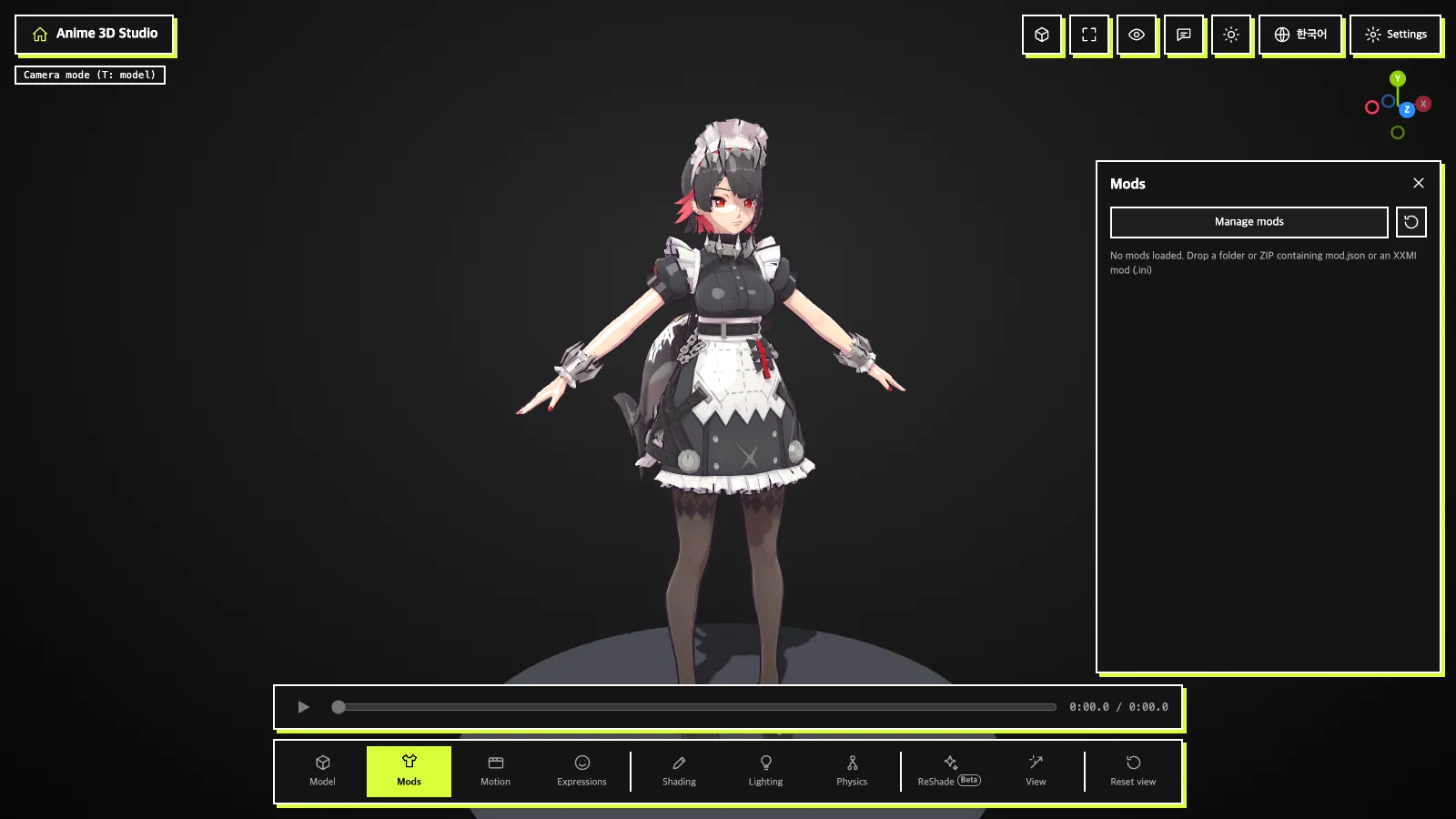
The Mods panel
- Switch mods on/off, reorder with ↑↓, remove with ×
- Each mod row carries operation tags (
Textures·Materials·Mesh visibility·Accessory·Expression·XXMI outfit). Refresh mods(icon): re-reads the mod list.
Mods apply from top to bottom. Mods that touch the same target are marked as a conflict and the lower mod wins. Materials, morphs, bones or textures the model lacks appear as yellow warnings under the mod row.
mod.json example
{
  "schemaVersion": 1,
  "name": "Summer outfit",
  "version": "1.0",
  "author": "me",
  "operations": [
    { "type": "textureReplace", "texture": "tex/body.png", "file": "textures/body_summer.png" },
    { "type": "materialParams", "materials": { "体": { "shadowColor": "#c8a0b4", "threshold": 0.2 } } },
    { "type": "meshVisibility", "materials": ["スカート"], "visible": false },
    { "type": "attachAccessory", "file": "hat/hat.glb", "bone": "頭", "position": [0, 1.5, 0], "rotation": [0, 0, 0], "scale": 1 },
    { "type": "morphPreset", "weights": { "笑い": 1, "あ": 0.3 } }
  ]
}
Operations
| Operation | What it does |
|---|---|
textureReplace | Replaces a texture the model uses (by path or file name) with a new image from the mod folder. Orientation and repeat settings follow the original texture |
materialParams | Toon parameters by material name (partial is fine). Visible in toon and Face SDF |
meshVisibility | Hides (visible: false) or shows a mesh by material name |
attachAccessory | Attaches a PMX, PMD, glTF or GLB from the mod folder to a bone. position, rotation (degrees) and scale are relative to the bone; the accessory itself does not move |
morphPreset | Lays down morph values (0 to 1). Values you pin in the Expressions panel win |
bodyPreset | Body presets. Not allowed on user models, so it is always rejected |
- Paths must be relative paths inside the mod folder (.., absolute paths and URLs are rejected). There are no scripts or expressions.
- If the format is wrong, the app says which item is wrong and does not load it.
- Keep mod.json in a different folder from the model (for example model/mods/name/). Every file under the folder with mod.json is treated as a mod file.
- Mods apply to MMD (PMX, PMD) models only.
INFO
Mod files live only in browser memory, so reload them after refreshing the page. To keep them, connect a folder in the mod manager.