 ModBoo
Opening and choosing models
The Model tab at the bottom opens the model popup in the middle: a row of buttons, a search box, model cards, and an info panel on the right.
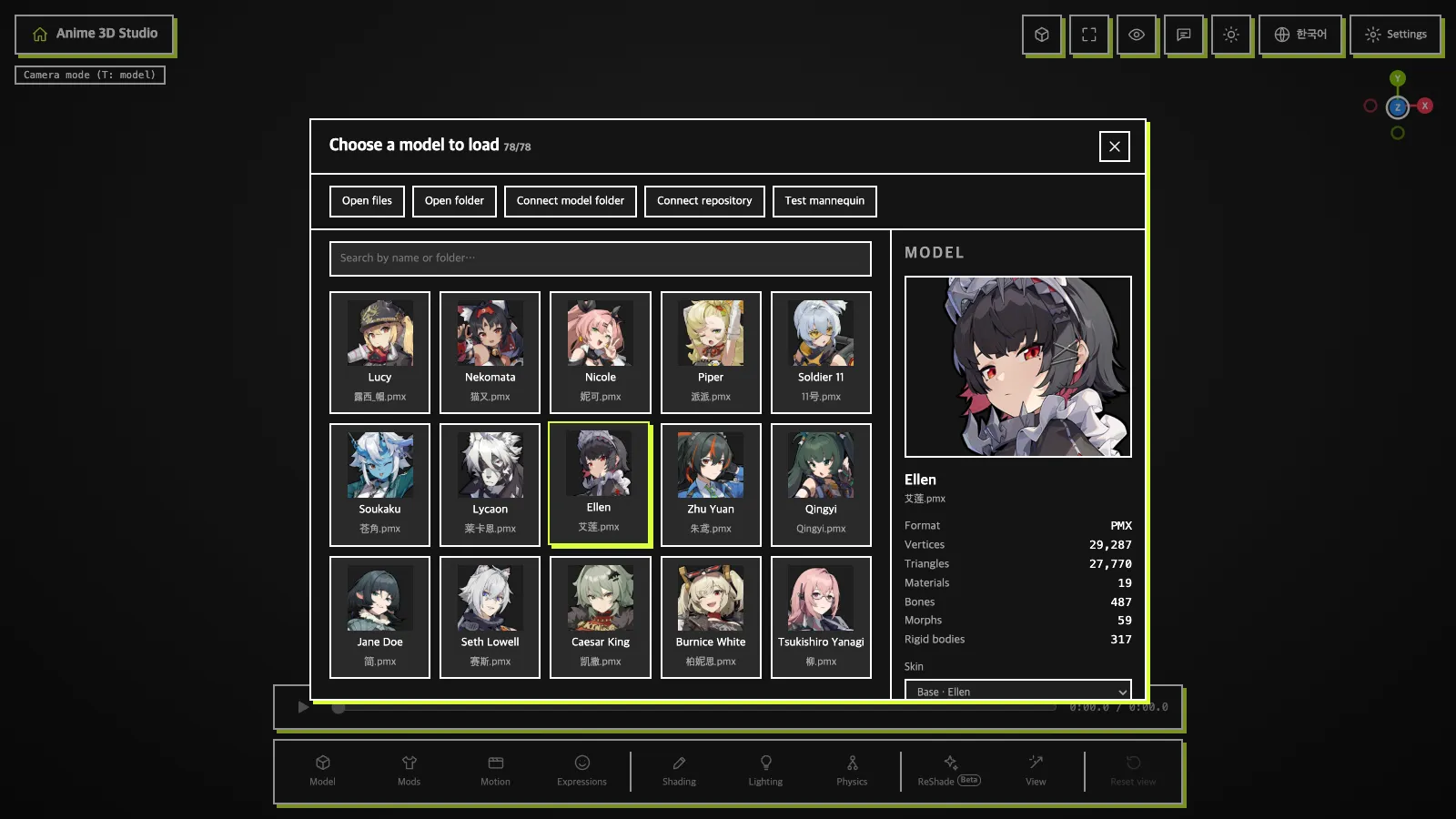
Buttons on top
| Button | What it does |
|---|---|
Open files | Pick model, motion, texture or ZIP files |
Open folder | Open a whole model folder |
Connect model folder | Connect a folder once and next time open it with one press of Open {folder name} without uploading again. Change folder switches to another folder. Files never leave this browser. Shown only in Chrome and Edge |
Choosing a card
- Type a name or folder name in the search box to filter. The number shows visible/total.
- Hover over a card to see a preview on the right (format, vertices, triangles, materials, bones, morphs, rigid bodies).
- Click a card to pin it, then pick a skin on the right and press
Load this model. Click again to release. - Double-click a card to load it right away.
- The card of the model already loaded is highlighted and tagged
Currently loaded.
When a folder holds several models, this popup opens by itself when you drop it. Esc or a click outside closes it.
Loaded model info
With nothing pinned, the right side shows the current model: name, format, counts of vertices, triangles, materials, bones, morphs and rigid bodies, Model comment, Skin, Open model list and Close model.
Texture linking
Expand Textures to see the image files the model uses and whether each is linked. When a path is off, the closest file is linked automatically and the app shows how it was found (by file name, a different extension, or restored garbled Japanese name). A texture that cannot be found becomes white and is listed.
The skin picker appears only for model-library folders that contain zzz.json and skins.json.